 Spectral Web Services
Why does my new Ghost theme look nothing like the preview?
...and how do I fix it?

Welcome to Ghost! I get a lot of emails and I read a lot of forum posts from new Ghost users. I especially see new users struggling to get the Source theme (the default theme that comes with Ghost) to look like the preview, and I get emails from users complaining that the theme they just bought is broken, because it looks nothing like the demo. Let's fix both those problems.
TL;DR: /ghost > settings ⚙️ > Design & branding > Customize > Theme (tab on top/right side)
Fixing Source to look like the preview:
Right now, maybe your site looks like this:
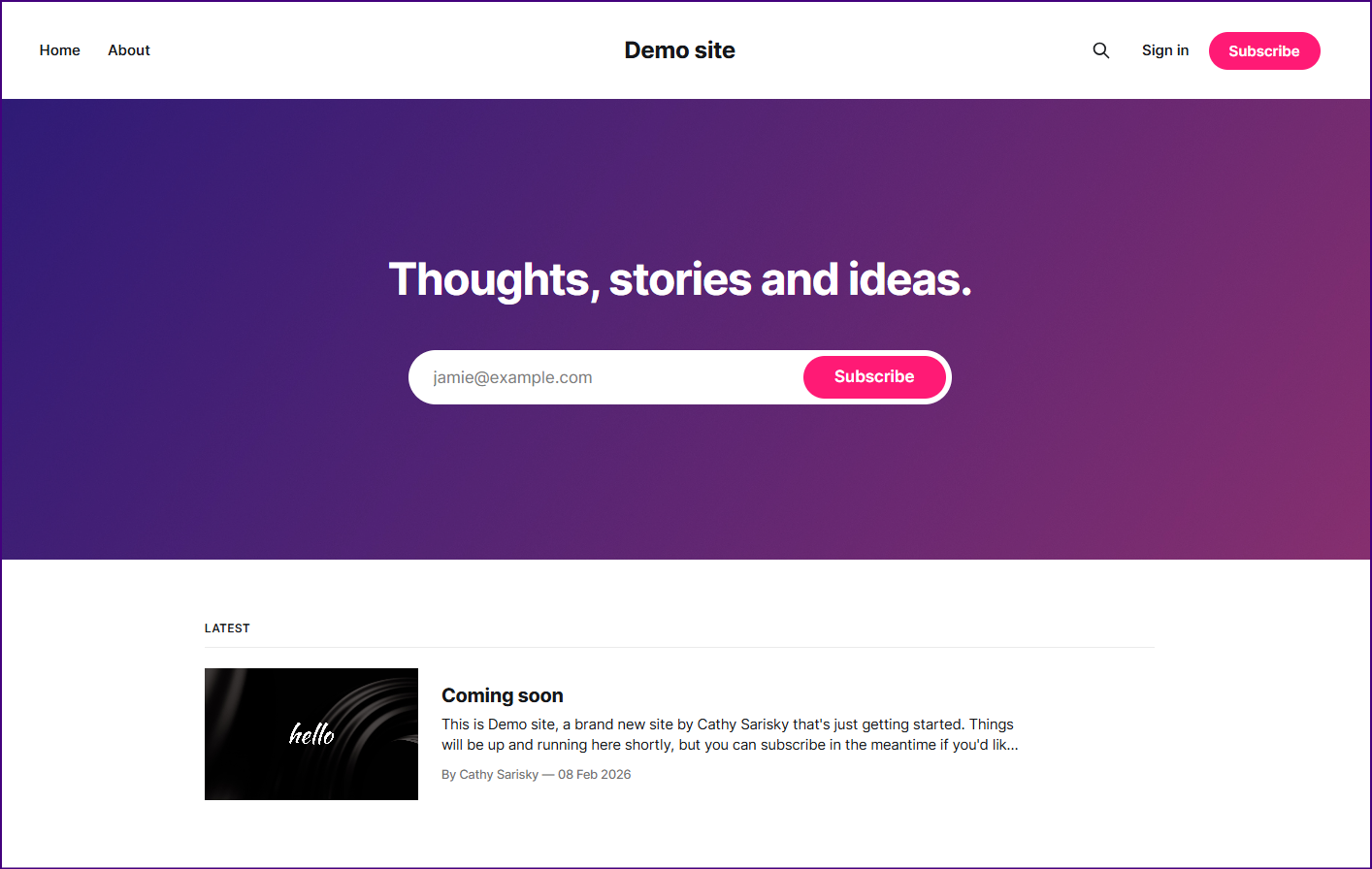
But when you looked at the preview, it looked like this:
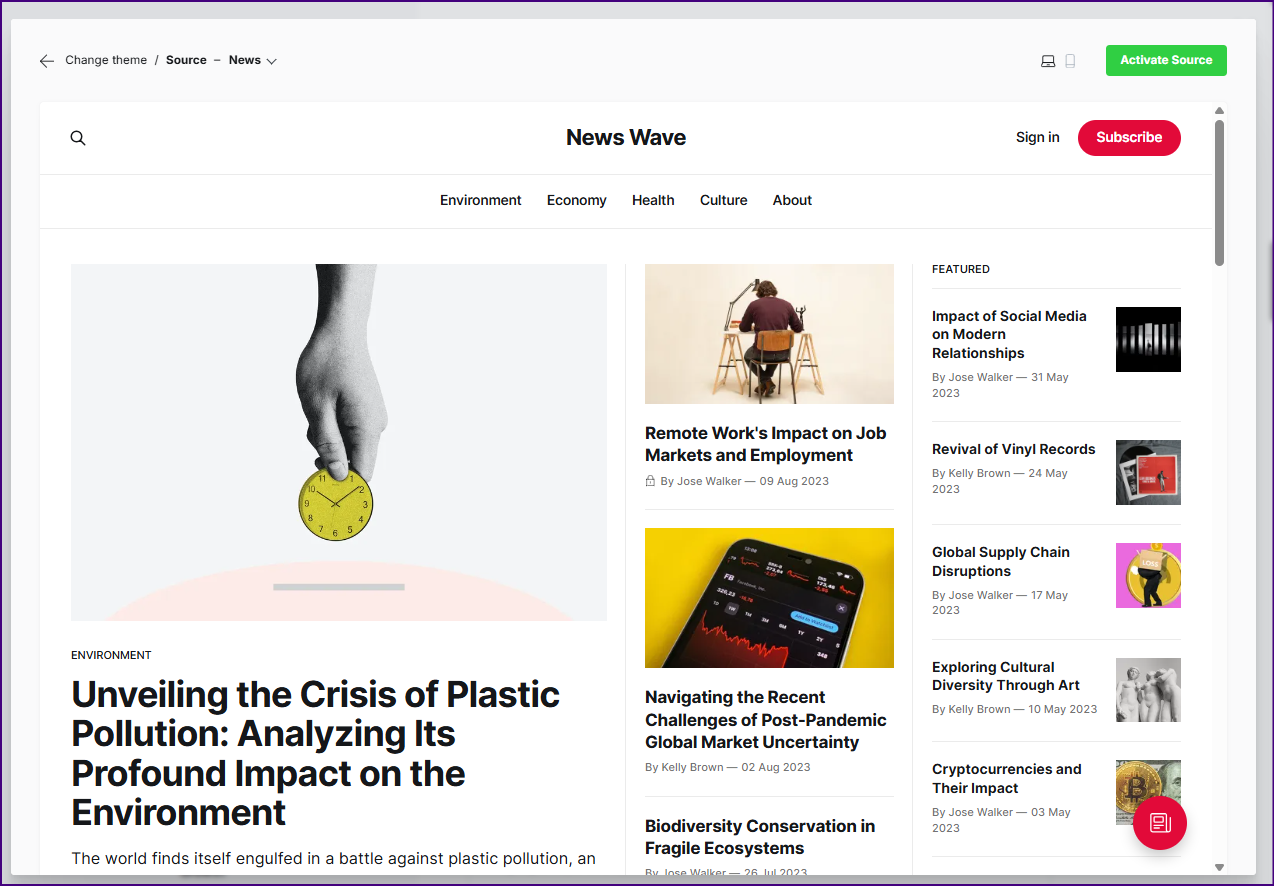
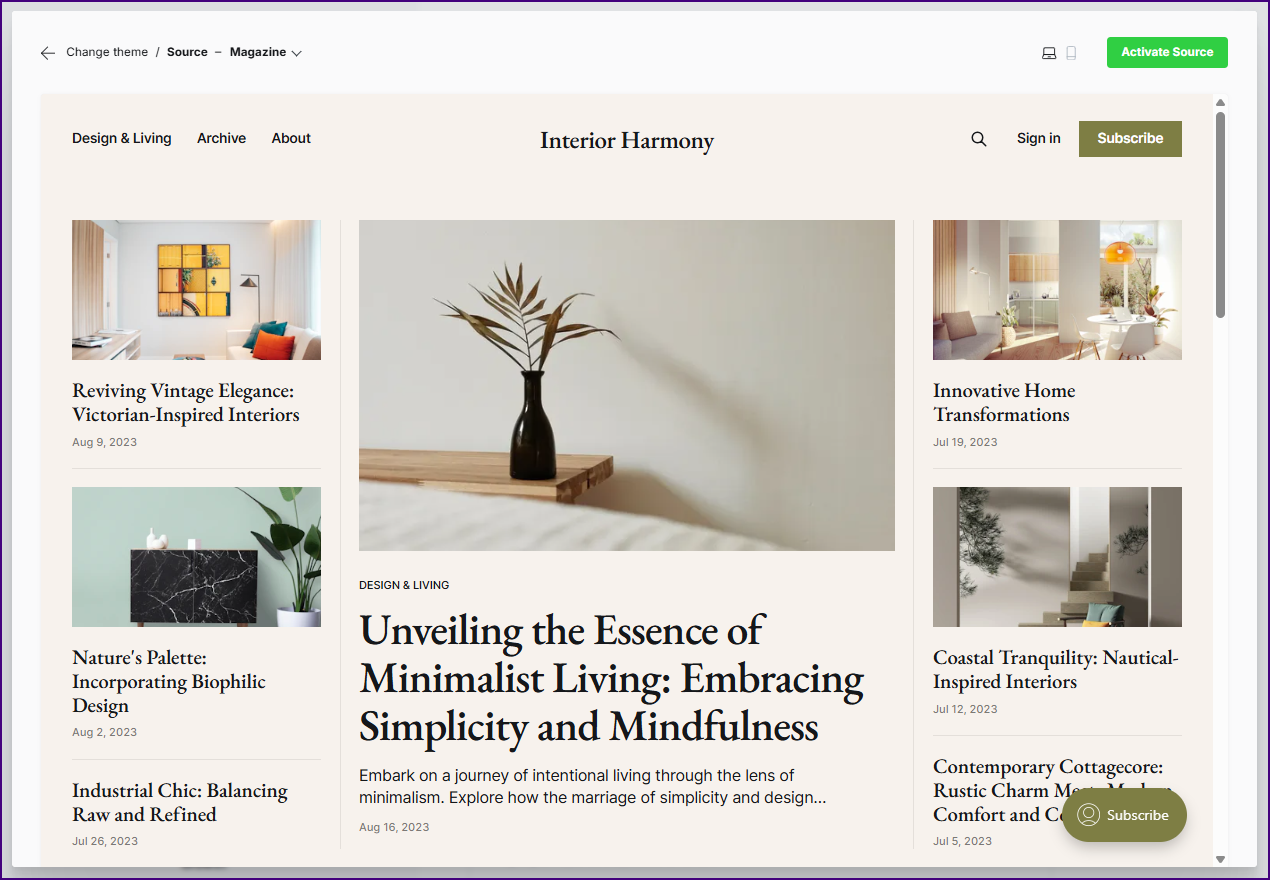
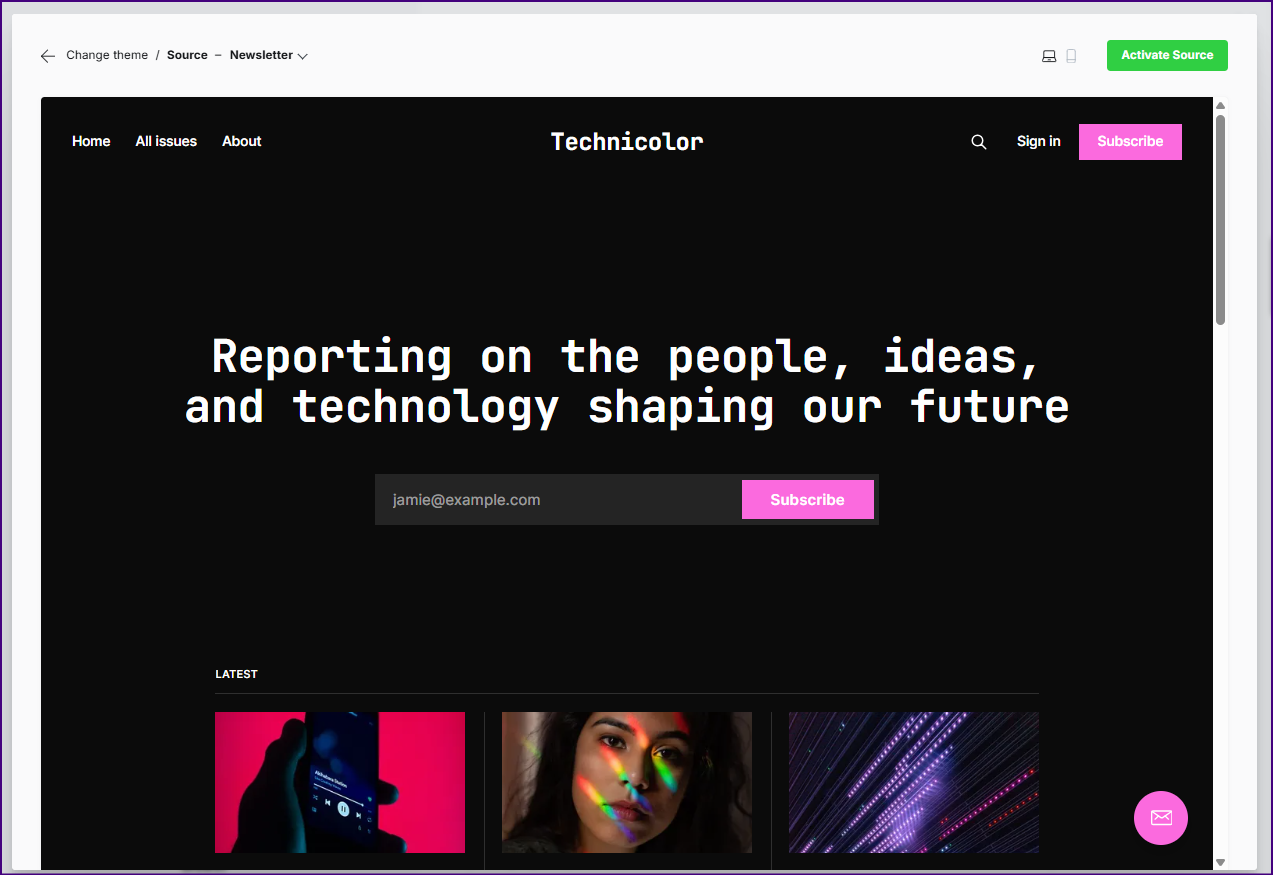
Your theme isn't broken! You just haven't set it up yet!
Step 1: Navigate to your Ghost dashboard.
The quickest way to get to your dashboard is just to head over to yourdomain.tld/ghost (or your-ghost-subdomain.ghost.io/ghost). That'll get you to the Ghost dashboard. (You'll often see me refer to it as /ghost on this blog.)
Step 2: Open the Settings menu ⚙️.
I'm showing two different versions, because the Ghost dashboard just had some changes. One of these two sidebars should match your Ghost install!
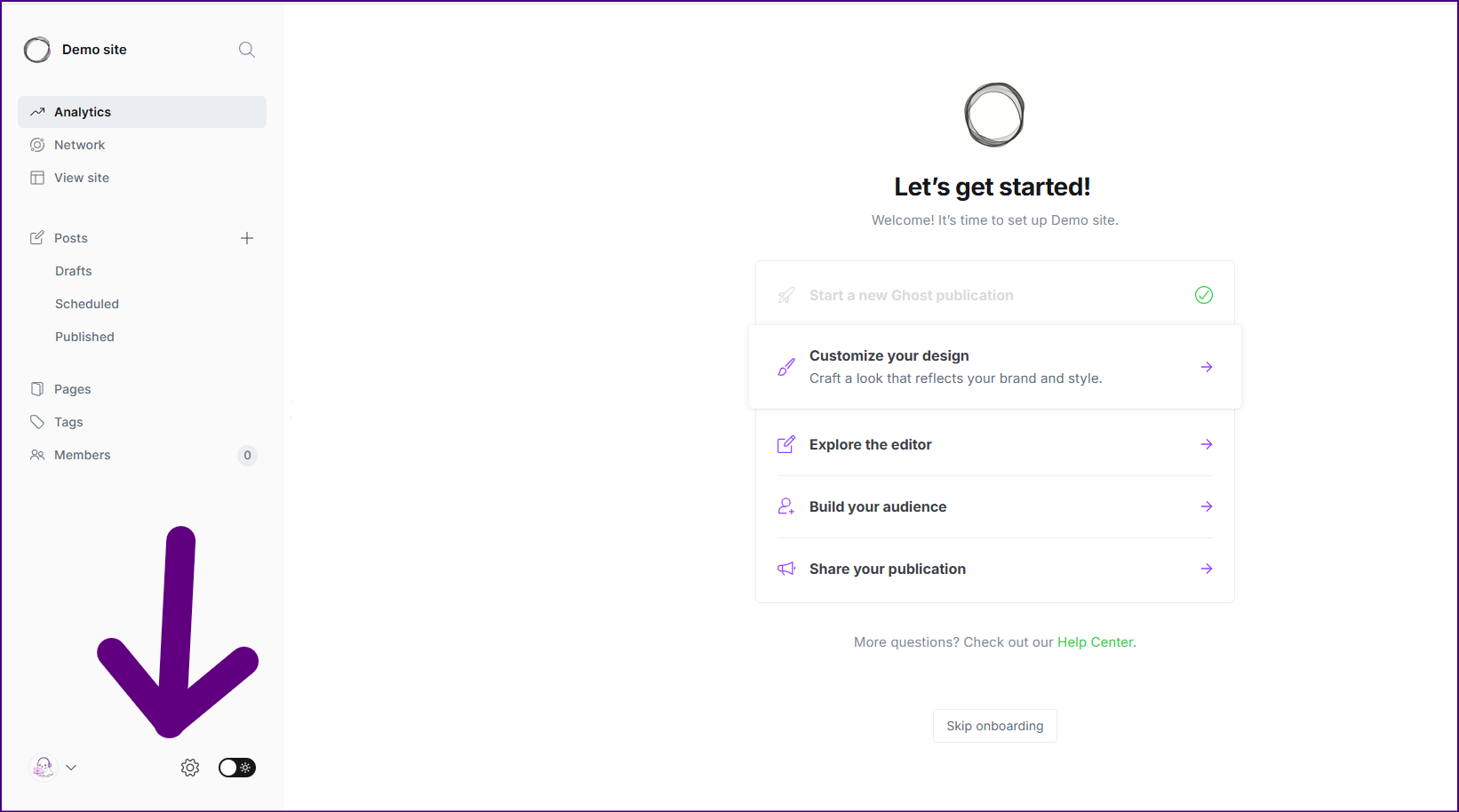
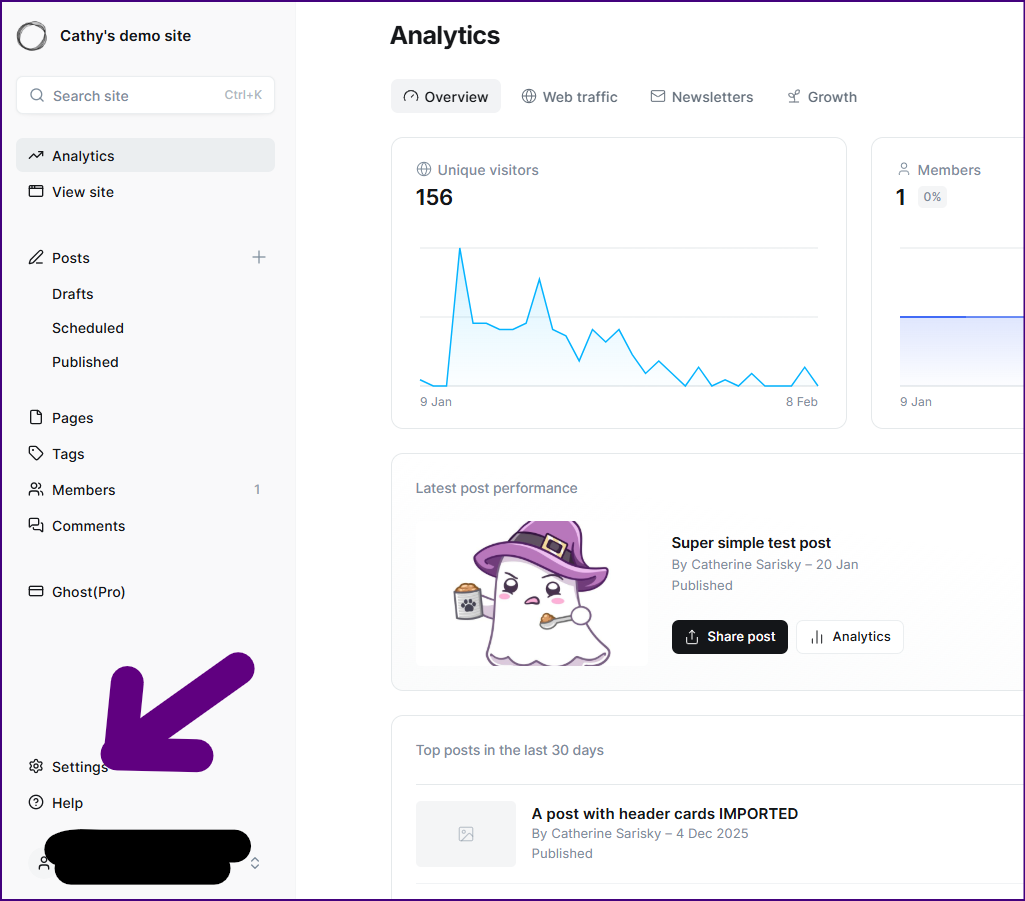
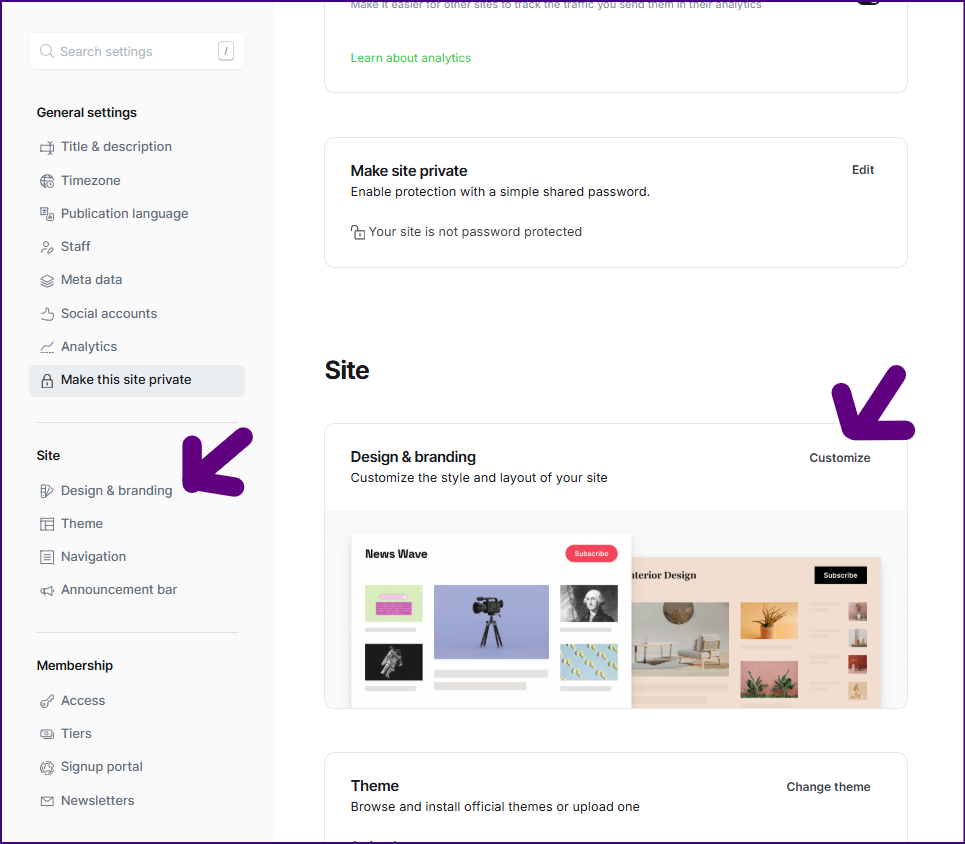
Step 3. Open up "Design & branding"
You can click the link in the left menu to scroll to it, or use the search in the top left. Click "Customize" to open the design & branding.
Step 4. Navigate to the "Theme" tab.
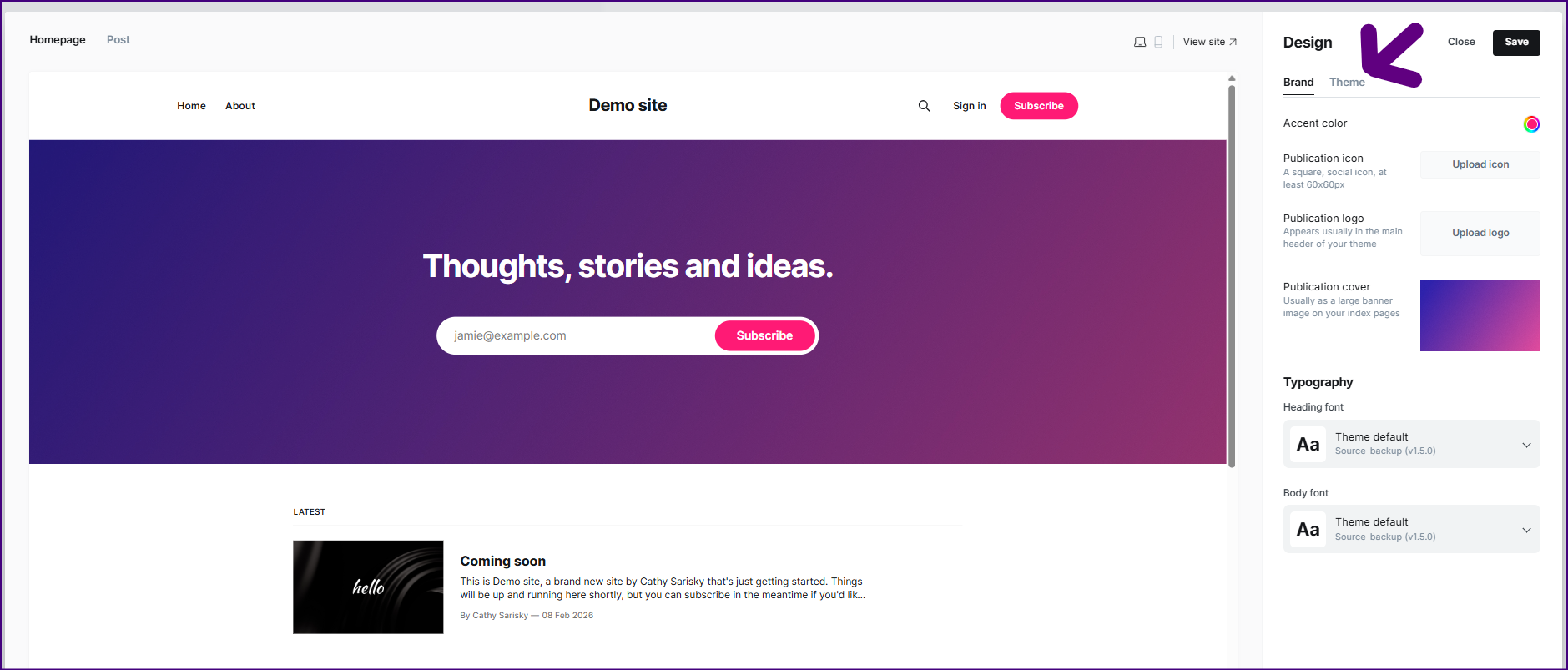
Step 5. Customize your settings!
You almost certainly want to change the "Header style" for Source, to make it look more like the preview. (Note that if you haven't published anything, it's going to look a little strange until you do. The default "landing" behavior is the default because it looks OK even with only one post, where Magazine and Highlight need more articles before they look right.)
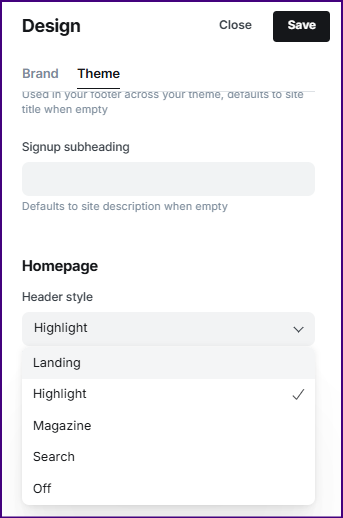
For Source, you may also want to adjust the "Post feed style" (if you'd like your posts in a grid in the lower section), the "Navigation layout", and so on.
Fixing a paid Ghost theme to look like its demo
The first place to look is again /ghost > settings ⚙️ > Design & branding > Customize > Theme (tab on top/right side) (see steps 1-5 above). Each theme defines a different set of configurable settings (or none at all), but you'll often find useful settings there. If you don't find what you're looking for there, chances are you need to read the theme's documentation. Paid themes typically include either documentation within the file you received, or a README file that links to the documentation. The more complicated and configurable a theme is, the more likely that the theme developer is doing something clever (pronounced "hacky") that might require you to read the documentation to figure it out. So please, read the docs!
Fixing another Ghost Official theme to look like its demo
When you select the theme, just before you hit "Activate ThemeName", you'll see a preview of the theme. Click the "About" link. For many of the official themes, that page will contain some information about how the theme works, that should hopefully help you get your theme looking just right.
So, for example, the Headline theme preview's about page tells you how to get tag sections included on the homepage (although the appearance of the design & branding section has changed a little bit since they took the screenshot):
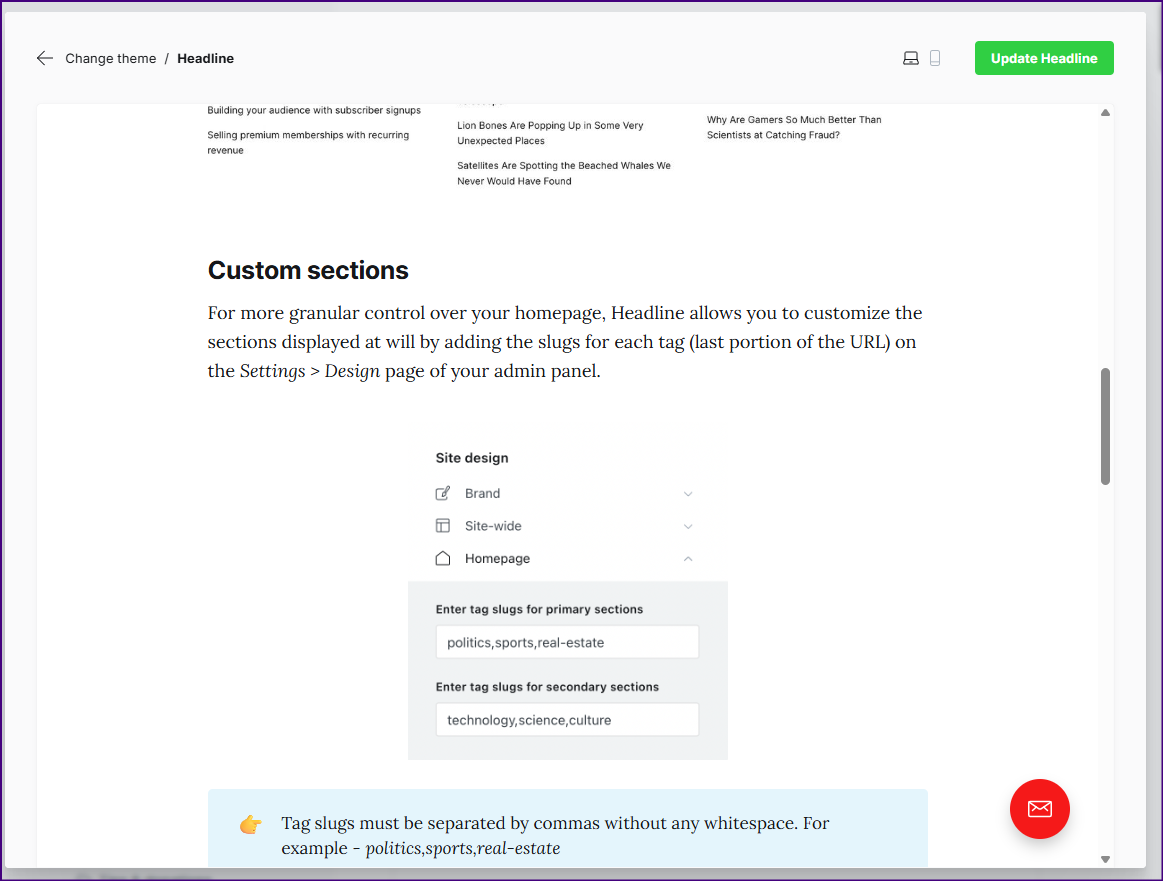
If you're still stuck after looking in design & branding and checking the theme documentation, particularly if you're trying to do something that isn't in the theme demo, then you might need some theme customization work!
Hey, before you go... If your finances allow you to keep this tea-drinking ghost and the freelancer behind her supplied with our hot beverage of choice, we'd both appreciate it!